
Whiteboard for teaching
A digital whiteboard for teaching, in class or online.
Teach on a board that remembers everything: write and draw as you explain, keep each part of the lesson on its own page, and share the link so students can follow along, or look back at it later.
Works in your browser · No card · Free to start
In short
Builderii works as a digital whiteboard for teaching, in a classroom or online, and it’s free to start. Write and draw with the marker (a stylus on a tablet works best), build a lesson across a board’s pages, present frames as slides with speaker notes, and share a link students open to watch the board live without an account. Students who sign in can work on the board with you, with sticky notes, voting and a timer for group activities, and mind maps for revision.
- Students watching
- Open the share link, no account, see your writing live
- Students working
- Sign in free, then get edit access by invite or link
- Lesson tools
- Pages, slides with notes, a timer, voting, templates, mind maps
- Not included
- Video calls and recording: use it with Zoom, Meet or Teams
What you get
Everything a lesson needs.
Write and draw
A marker that follows a stylus’s pressure, a highlighter, an eraser and high-contrast colours.
Pages
As many pages as the lesson needs on one board, for each step or each class.
Present
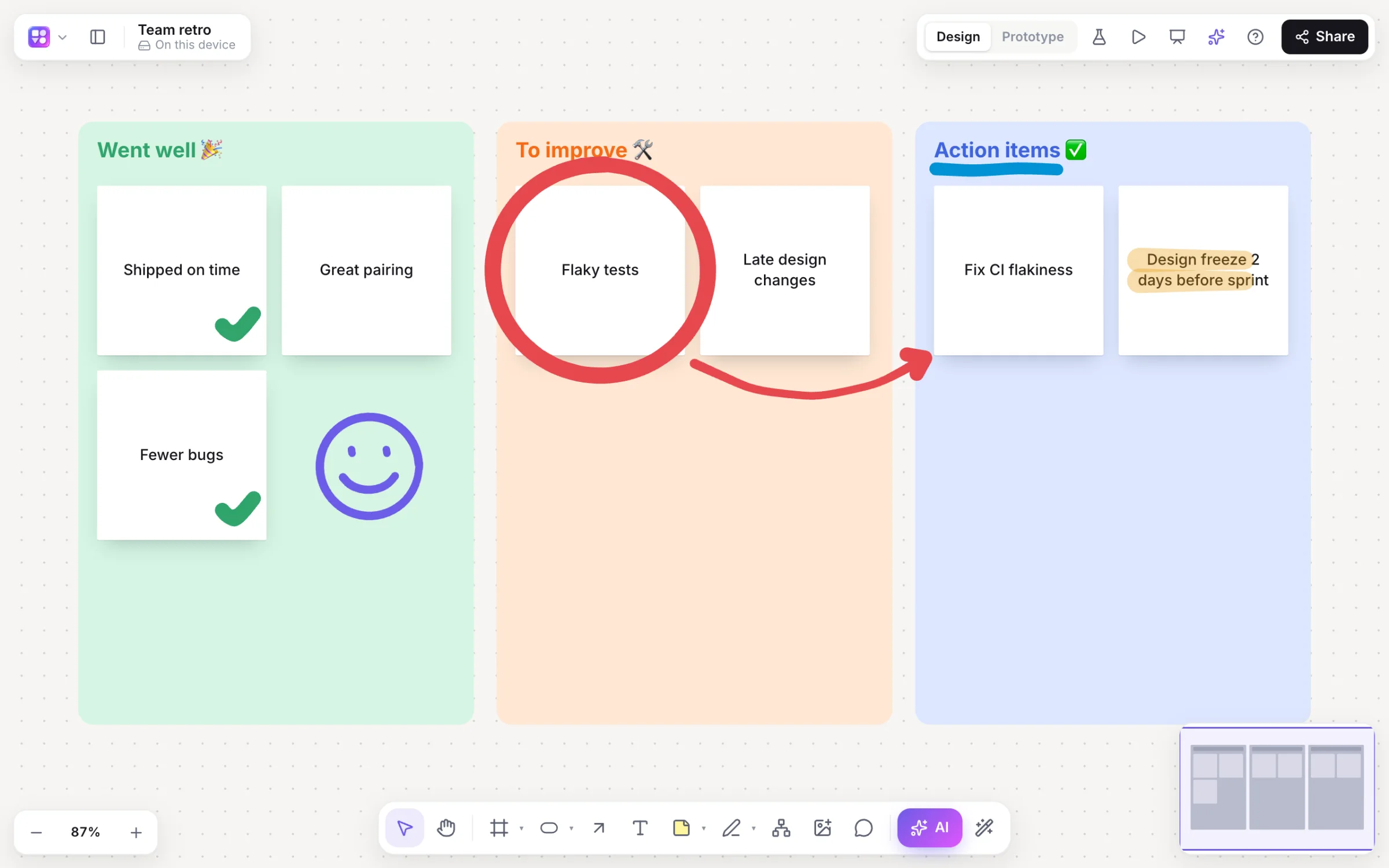
Frames become slides, with speaker notes and a presenter view in its own window.
Mind maps
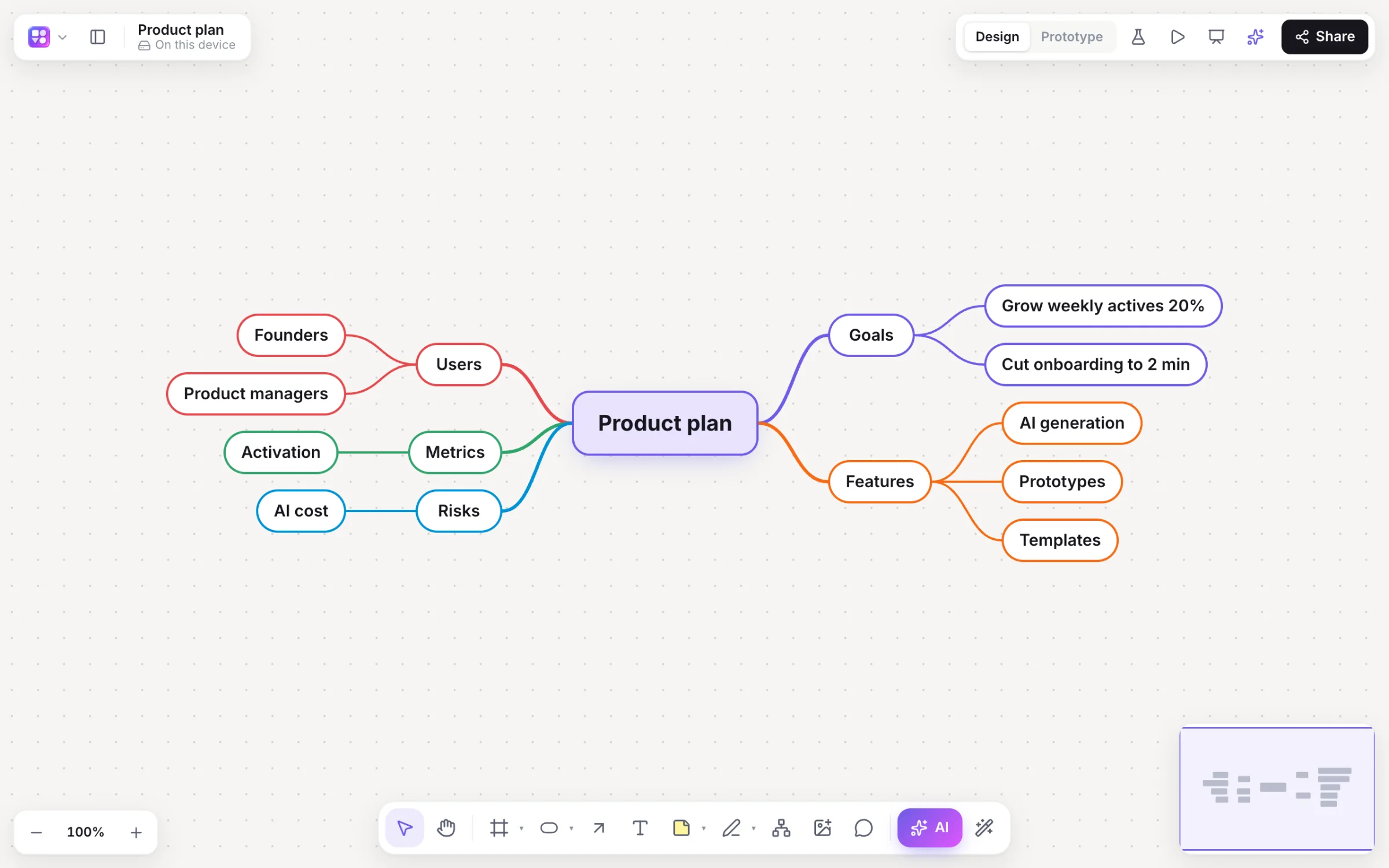
Build a revision map with Tab and ↵, or let the AI draft one from a topic.
Class activities
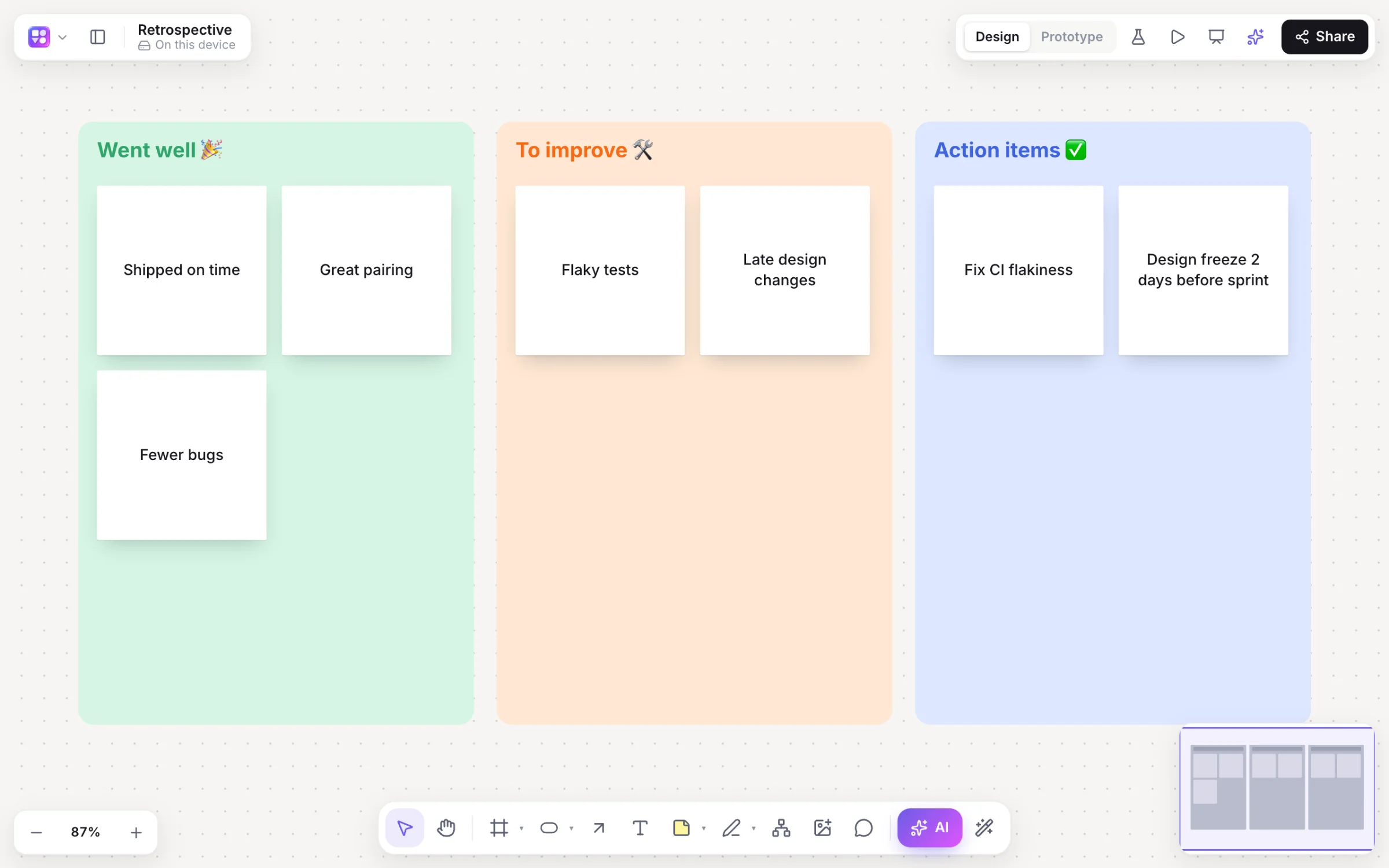
Sticky notes, dot voting with hidden cursors and a five-minute timer.
AI help
Brainstorm ideas, group students’ notes by theme, and summarise the board into key points.
Embed it
Put the live board on a class website or learning platform page with an iframe.
Handouts
Export the board or each frame as a PDF, PNG or PowerPoint.
How it works
Teach a lesson on one board.
Plan the lesson
Put each part on its own page: the starter, the explanation, the activity, the recap.
Share the link
Turn on View for the share link and post it in your class chat; students watch without an account.
Teach live
Write and draw as you talk, or present frames as slides with your speaker notes in a presenter view.
Run an activity
Signed-in students add sticky notes, vote on answers, and race the five-minute timer.
On the canvas
Real boards, made in Builderii.
Questions
Good questions.
Is it free for teachers?
Yes, to start. Builderii’s Free plan has every feature and 200 AI jobs a month per person, for up to 2 boards with up to 50 components on each. Pro takes those limits off for $10 a month billed yearly, or $12 month to month.
Do students need accounts?
Not to watch: with the board’s share link on View, students see the board and your writing live without signing in. To add sticky notes, draw or vote, they sign in free (with Google or an email address) and you give them access by invite or link.
Can I use it with Zoom, Google Meet or Teams?
Yes. Share your screen with the board on it, or paste the board’s link in the meeting chat. Builderii has no video calls of its own.
Can I record a lesson?
Not in Builderii: use your video call’s recording. The board itself stays, with every page, so students can look back at it.
Can I use it on a classroom display?
Builderii runs in any modern browser on a computer or a tablet, so you can show it on a classroom display from either.
Keep reading
More ways to use Builderii.
What do you want to build?
Start with a prompt, a template or a blank board. It’s free to start.