
Guide
How to use a whiteboard in Zoom.
Zoom has a whiteboard and annotation tools built in, and they’re fine for a quick sketch. Here’s how to use them, how to let everyone draw, and when a separate online whiteboard serves the meeting better.
Works in your browser · No card · Free to start
In short
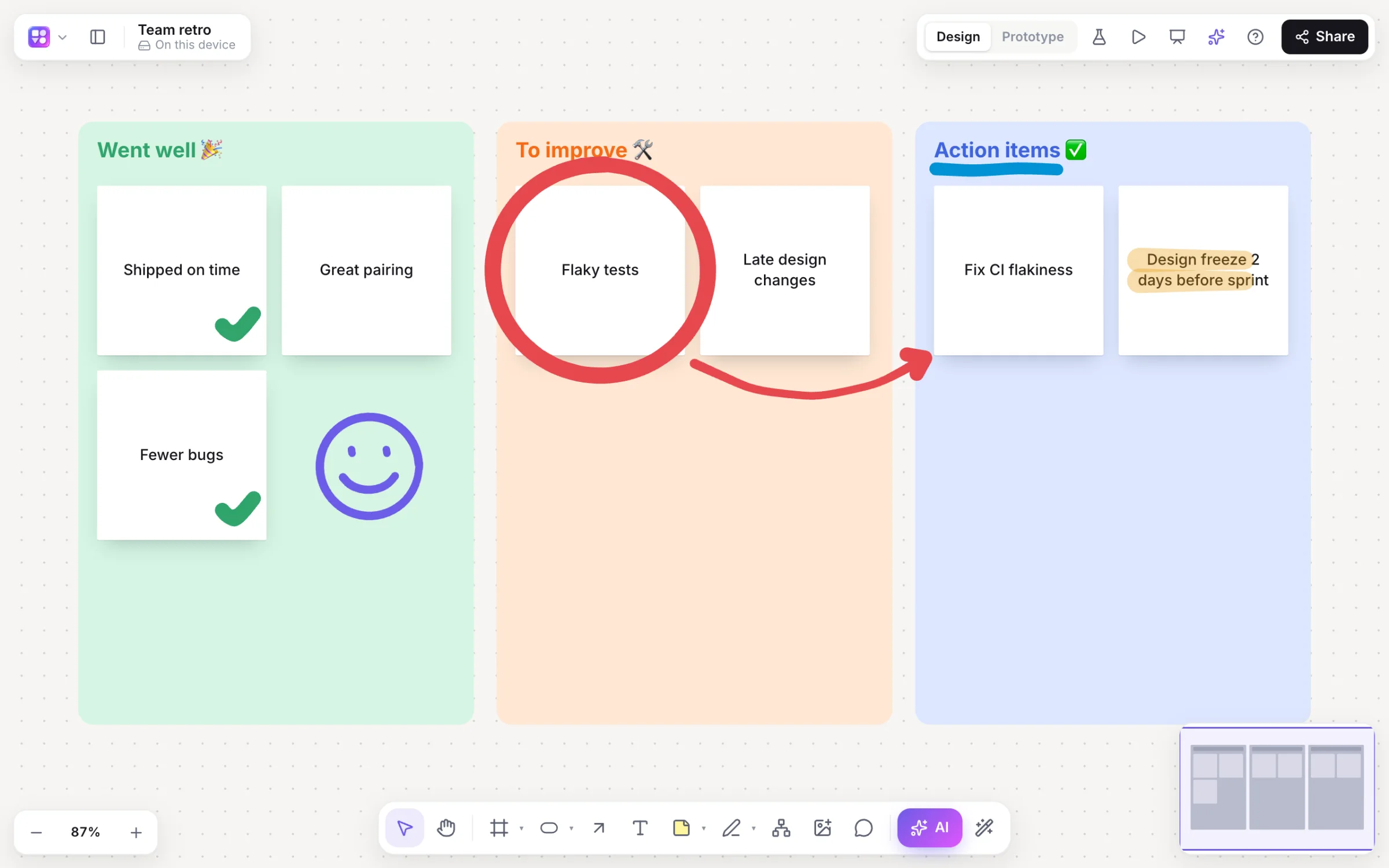
To use a whiteboard in Zoom, open Whiteboards from the meeting toolbar (in some versions, Share Screen, then Whiteboard), draw with the pen, shape and text tools, and let participants annotate if they should draw too. To draw over something you’re sharing, use Annotate on the screen-share toolbar. Menus differ between Zoom versions and accounts. For a board that stays organised after the call, with templates, sticky notes and diagrams, share a link to an online whiteboard instead.
- Start
- Whiteboards in the meeting toolbar, or Share Screen → Whiteboard
- Let others draw
- The host allows participants to annotate
- Draw on a share
- Annotate on the screen-share toolbar
- After the call
- Save the whiteboard, or keep working in an online whiteboard
Six steps
Draw on a whiteboard in a Zoom meeting.
Open the whiteboard
In the meeting toolbar, choose Whiteboards (or Share Screen, then Whiteboard, depending on your version).
Draw
Use the pen for freehand, shapes for boxes and arrows, and text for labels. Smart recognition, where available, straightens rough shapes.
Let everyone draw
As the host, allow participants to annotate (in the meeting’s More or Security menu, depending on your version).
Annotate a share
To draw over a shared screen or slide instead, choose Annotate on the screen-share toolbar.
Save it
Use Save on the whiteboard or annotation toolbar before you end the share.
Or share a board link
For a board that lasts, paste an online whiteboard’s link in the chat and work there together.
At a glance
Zoom’s whiteboard and an online whiteboard, side by side.
| Zoom whiteboard | Builderii | |
|---|---|---|
| Where it lives | Inside the Zoom meeting | A link anyone can open, during the call or after |
| Who can draw | Participants the host allows to annotate | Anyone given edit access; anyone with the link can watch |
| Templates, sticky notes and diagrams | Check your Zoom plan | 18 templates, sticky notes, mind maps and flowcharts |
| After the meeting | Save it from the toolbar | The board stays, with version history and AI summaries |
Compared from each product’s public pages in October 2026; features change, so check before you decide. Product names are trademarks of their owners. Builderii isn’t affiliated with or endorsed by them.
Zoom’s whiteboard or annotation?
Zoom’s whiteboard is a blank canvas for the meeting. Annotation draws on top of whatever is being shared, such as a slide, a document or a website. Use the whiteboard to sketch from scratch, and annotation to point at something that already exists.
Why participants can’t draw
Usually because annotation is turned off for them. The host can allow it during the meeting; organisations can also switch it off for everyone in their Zoom settings. Menus move between Zoom versions, so look for “annotate” in the meeting’s More or Security menu.
When a separate whiteboard is better
A meeting whiteboard is at its best for a quick sketch. When the board should be organised, shared after the call or worked on again next week, an online whiteboard such as Builderii fits better: paste its link in the Zoom chat, and people can watch live without an account or sign in to draw. Templates, sticky notes, voting and a timer run the session, and AI groups the notes and writes the summary when you’re done. Builderii has no video calls or Zoom app of its own: it runs beside the call.
Questions
Good questions.
How do I draw on Zoom?
Open Whiteboards from the meeting toolbar (or Share Screen, then Whiteboard), or choose Annotate while sharing your screen, then pick the pen.
Why can’t participants draw on my Zoom whiteboard?
Annotation is probably off for them. The host can allow participants to annotate during the meeting; an account administrator may also have turned it off in Zoom’s settings.
Can I save a Zoom whiteboard?
Yes: use Save on the whiteboard or annotation toolbar before you stop sharing.
Can I use Builderii in a Zoom call?
Yes. Share your screen with the board on it, or paste the board’s link in the Zoom chat: people with the link watch live without an account, and people you’ve given edit access draw too. There’s no Zoom app integration.
Keep reading
More ways to use Builderii.

What do you want to build?
Start with a prompt, a template or a blank board. It’s free to start.